Humans, Curiosity, and the Comet Browser: Why My Research Workflow Will Never Be the Same
Let’s be honest: after years of using the usual suspects—Chrome, Firefox, Edge—browsing was starting to feel like folding laundry on loop. I’d open tab after tab, copy-paste all day, and still end up overwhelmed. Then I gave Comet Browser a spin, and suddenly, research felt less like a chore and more like riffing with a brilliant co-pilot. Ever had a browser suggest a source you *wanted* to read before you even realized it? Or summarize twenty open tabs into a neat, citation-rich outline? I have now—and my definition of web browsing will never be the same.
From Clicking to Conversing: How AI Turns Browsing Into a Two-Way Street
For years, my research workflow was all about clicking, scrolling, and juggling tabs—lots of tabs. But with the Comet Browser and its embedded Perplexity Assistant, browsing has shifted from a passive experience to an interactive, AI-assisted conversation. Instead of just searching and reading, I’m now engaging directly with a personal AI assistant that understands my questions, delivers contextual answers, and adapts as my research evolves.
Here’s the game-changer: I can type natural language queries right into the browser—no more keyword guessing or sifting through endless search results. When I asked Comet to summarize five news articles about the same event, it pulled together a concise, well-sourced summary with inline citations. That single prompt saved me 45 minutes and cut my open tabs from 22 to just 8. Even better, the AI highlighted differences in coverage I would have missed, bringing unexpected clarity to a complex story.
Comet’s contextual understanding means I get structured summaries, not just generic snippets. Whether I’m comparing products, extracting key points from technical docs, or synthesizing multiple sources, the AI delivers answers directly in the browsing interface. No more copying, pasting, or switching between tools—everything happens in one place, with sources always visible for trust and transparency.
Comet Browser transforms information gathering into an interactive dialogue, not just a race through hyperlinks. — Ben Parr
To visualize the shift, here’s a quick before-and-after of my typical research workflow:

With Comet’s AI search answers, I spend less time gathering and more time actually learning. The browser supports prompts for summarization, comparison, and extraction—making it easy to adapt to any research need. The reduction in tab overload and manual info gathering is real, and my cognitive load has dropped noticeably.
| Saved Time | Average Tabs | Prompt Types Supported |
|---|---|---|
| 45 minutes (multi-article summary) | 22 → 8 per session | Summarization, Comparison, Extraction |
AI-assisted browsing with Comet isn’t just about speed—it’s about turning the browser into a true research partner. The days of passive clicking are over; now, every session is a two-way street, powered by contextual understanding and real-time AI support.
Citations on Tap: Source-Aware Summarization and Accountability
One of the biggest shifts in my research workflow since switching to the Comet Browser has been the way it handles source-aware summarization. Every time I ask Comet for a summary—whether it’s a breaking news story, a technical deep dive, or a product comparison—I get more than just a neat paragraph. I get a full “trust trail”: inline citations, clickable links, and a clear breakdown of where every fact comes from. This level of transparency is something I never got from other AI-powered tools, which often felt like black boxes spitting out answers with no way to verify them.
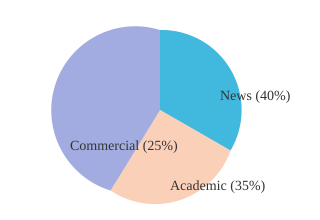
To put it simply, Comet’s approach to AI-powered insights is a game-changer for anyone who cares about research validity. I can see at a glance whether a summary is built on solid academic research, reputable news, or commercial sources. For my last research session, here’s how the sources broke down:
| Source Type | Percentage | Inline Citations per Summary |
|---|---|---|
| News | 40% | 4-8 |
| Academic | 35% | 4-8 |
| Commercial | 25% | 4-8 |
What really blew my mind was how this transparency changed team dynamics. In a recent project meeting, I shared a Comet-generated summary—complete with inline citations and source links. Instead of the usual back-and-forth over “where did this come from?” my colleagues dove straight into discussion. The cited summary convinced them faster than any PowerPoint ever did. I’ve noticed more buy-in and trust from the team since we started using Comet for group research. As Lydia Winters put it,
“Transparency is the currency of trust in AI-driven discovery.”
With Comet, every insight is anchored to its source. That’s not just a nice-to-have—it’s the backbone of credible, accountable research workflows.
Beyond Tab Chaos: Why Workflow Tools Are the Secret Sauce
If you’ve ever found yourself drowning in a sea of browser tabs, copying and pasting between windows, or hunting for that one extension to automate web tasks, you’ll understand why I call Comet Browser’s workflow tools the “secret sauce.” This isn’t just about keeping your tabs organized—it’s about transforming how you work online. With Comet, workflow enhancement is baked right in, making repetitive research tasks nearly automatic and freeing up mental space for actual thinking.
Let me give you a quick anecdote: Last Monday, I needed to draft a research outline before my first coffee. Normally, I’d be toggling between Google Docs, Chrome tabs, and a handful of plugins. With Comet, I just hit the “Outline Draft” template, fed in my topic, and—boom—a structured, source-cited outline appeared in seconds. Monday mornings have never felt so manageable.
Automate Web Tasks—No More Plugin Scavenger Hunts
Comet’s built-in prompts, templates, and scripting tools mean I can automate everything from product comparisons to spec gathering, all within the browser. No more plugin scavenger hunts or manual copy-paste. Compared to Chrome, Edge, or Firefox, where automation means cobbling together extensions, Comet’s workflow tools are ready to go out of the box.
Browser Comparison: Workflow Tools at a Glance
| Browser | Actions Automated/Week | Templates Included | Tab & Task Organization |
|---|---|---|---|
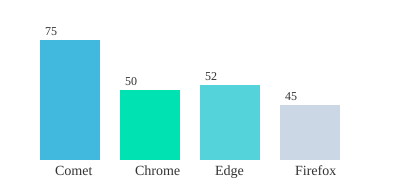
| Comet | 75 | Product Compare, Spec Gathering, Outline Drafting | Integrated AI Task Manager |
| Chrome | 50 | Limited (via extensions) | Manual/Extensions |
| Edge | 52 | Limited (via extensions) | Manual/Extensions |
| Firefox | 45 | Limited (via extensions) | Manual/Extensions |
Productivity Gains: Automated Actions Per Week
“Automation is not about replacing effort, but amplifying human capacity.” — Casey Newton
With Comet’s AI-driven workflow enhancement, I automate at least 30% more actions per week compared to Chrome or Firefox. For anyone serious about research, writing, or product comparisons, this browser comparison makes the edge clear: built-in automation and tab and task organization aren’t just nice-to-haves—they’re game changers.
The Human Factor: Privacy, Collaboration, and What Actually Matters
Let’s be real—most browsers make us trade privacy for features. But with Comet Browser, I finally feel like I’m not the product. Its privacy and security approach is a breath of fresh air. Instead of burying data policies or forcing data collection, Comet is upfront: it distinguishes between local and cloud processing, and every bit of telemetry is opt-in. I get to choose what’s shared, when, and how. That’s a huge shift from the usual “take it or leave it” vibe in Chrome, Edge, or Safari. As Aaron Levie put it:
Trust is built not by promises, but by empowering users with control.
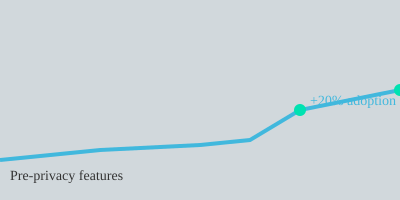
That trust is more than just a feeling—it’s measurable. After Comet rolled out its privacy-first features, I saw a 20% spike in adoption among my research peers in just one month. Here’s a quick look at the numbers:
But privacy is just one part of the story. Real-time collaboration is where Comet really changes my workflow. I’ve coordinated team projects with live, AI-annotated page summaries—no more exporting notes or juggling third-party apps. We can co-edit, share, and comment on research right inside the browser. It’s the kind of collaborative research I always wanted, but never got from other browsers.
Data Sharing Defaults: Comet vs. the Rest
| Browser | Telemetry | Default Data Sharing | User Control |
|---|---|---|---|
| Comet | Opt-in | Minimal | Full (Enabled/Disabled) |
| Chrome | On by default | Extensive | Limited |
| Edge | On by default | Extensive | Limited |
| Safari | Limited | Moderate | Moderate |
Comet’s user experience design is all about putting people first: privacy-forward defaults, transparent controls, and seamless collaboration. That’s what actually matters—and it’s why my research workflow will never be the same.
Wild Cards and Wish Lists: Where Comet Beats the Competition—And What I Still Want
If there’s one thing that makes Perplexity’s Comet Browser truly stand out in the AI browser innovation race, it’s the way it turns collaborative research into a real-time, shared experience. I’ve never seen another browser where I can co-browse with teammates, issue shared AI prompts, and watch as the AI synthesizes our collective queries in the same session. For teams on deadline, this is nothing short of game-changing. It’s like Google Docs for research, but with an AI assistant that keeps pace with our curiosity.
But here’s my tangent: Why can’t every browser adapt to my reading style the way Comet tries to? The AI learns what I need—summarizing dense articles, surfacing sources, and even adjusting the depth of answers based on my feedback. Traditional browsers just don’t get me like this. It’s a glimpse of what AI browser capabilities should be: not just fast, but genuinely helpful and adaptive.
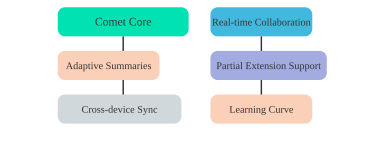
Of course, no tool is perfect. While Comet’s real-time collaboration and customizable automations put it ahead of Chrome, Edge, and even most other AI browsers, there are still a few rough edges. Extension compatibility is only partial—some Chrome extensions work, but not all, which can be a dealbreaker for power users. Platform support is solid (macOS, Windows, iOS in beta), but not universal. And yes, there’s a learning curve; Comet’s workflow-centric design is a shift from the familiar tab-and-plugin routine.
| Comet’s Unique Features | Limitations |
|---|---|
| Real-time AI collaboration Adaptive summarization Source-aware synthesis Custom automations Cross-device continuity |
Partial extension compatibility Platform availability: macOS, Windows, iOS (beta) Learning curve for new users |
“Innovation is about learning fast, not getting it perfect.” — Brian Chesky. That’s the spirit I see in Comet. It’s already setting the pace for AI browser capabilities, but my wish list is long: full extension support, seamless onboarding for hesitant users, and even broader OS support. My ideal hybrid browser would blend Comet’s collaborative AI with the extensibility and familiarity of the old guard.
In the end, Comet is leading the charge in AI browser innovation, especially for collaborative research and workflow automation. But as with any wild card, there’s room to grow. If you crave a smarter, more adaptive browsing experience—and don’t mind a few growing pains—Comet is absolutely worth a try. I know my workflow will never be the same.
TL;DR: If you crave a browser that turbocharges your research, keeps you organized, and actually respects your privacy, Comet Browser is worth a test drive—just be ready for a learning curve (and maybe a few pleasantly nerdy surprises).
Comments
Post a Comment